Home | Looking for something? Sign In | New here? Sign Up | Log out
Showing posts with label Blackberry mobile. Show all posts

Saturday, September 1, 2012

BlackBerry bold 9700 problem can't access sim in mobile

Fault description:
Blackberry bold 9700 sometimes shows insert sim card message while sim has been inserted into the mobile. This problem occurs because there is some internal track missing from the sim tray to the sim IC and sometime due to a shorted sim IC. So we can't access the sim in the mobile.

Fault solution:
For a quick and proper solution for this error we have to follow all these steps carefully:

1. First we should change the sim card because sometimes the sim card has internal shorting in a circuit so we can't use it. This is a hidden defect and one you aren't going to detect until you see the insert sim card message on your screen when it shouldn't be.

2. After this open the mobile and clean the sim tray (connector) and then check if the problem still exists. Keeping the inside of the mobile clean and totally free from even the tiniest quantity of debris is a necessity if you expect to be able to use your mobile all of the time.

3. If you haven't managed to solve the problem yet, then we have to check all track continuity from sim tray to the appropriate sim IC connection point as shown in the image below. It's a good idea to try and save yourself this work by remembering to first clean the sim tray, but it isn't always an effective solution. If it doesn't work, then you have no other choice but to begin checking the track.


4. First check the first point shown with the pink mark track to the IC first point.

5. Secondly, check the line from the second point shown with a sky blue mark to IC sixth point.

6. Then check the line from the third point of the sim tray shown with a black mark to the ground.

7. Check the 4th track shown with a red mark to IC point 2 and also to the point jut below this point.

8. Check the 5th point shown with a green mark for the line with the IC third point and a point below this 5th point connection.

9. Finally connect the 6th sim tray point to point 2 and a point just below this point as shown with a sky blue mark. So if we found any line missing on any point then we would have to apply the jumper as shown in image:

After all of this is done check on the problem again. If the problem still remains then we have to change the sim IC.

Conclusion:
We should check the continuity of all the sim tray point lines according to the color mark we had mentioned in the image above for a proper and quick solution. Sometimes it is necessary to go a step further in order to resolve this problem, but ultimately you will find that it is solvable.

BlackBerry bold 9000 speaker pops in handsfree problem

Fault description:
BlackBerry bold 9000 sometimes has a handsfree problem. So we can't use the earphones and sometimes the mobile shows the handsfree logo on the screen permanently. We got this error due to some settings being mismatched and sometimes due to hardware problems. 
Which brings us to another point to be made. If ever you can't figure out the reason for some type of disruption to service occurring, always check for hardware problems. It happens more often than you think. It could be something minor, or it could be something far more serious.
Fault solution:
For solving this problem we have to first check the setting for a quick solution. So apply these steps:

1. Go to the setting and select profile management there. Then select normal profile and with it in enhancement mode select the headset mode.

2. Now first open the mobile and change the handsfree jack and check problem.

3. If the problem still remains after changing the handsfree jack, then we have to use the jumper for a sound IC.

4. First connect point 1 to the sound transistor as shown in the image below:

5. Then connect point 2 of the handsfree jack to the transistor as shown in the image.


6. Then connect the 3rd point to the other resistance as shown in the image:7. Now connect the 4th point to another resistance properly.

8. And after all that is done connect the final and last point for a blank connection.

9. Now check the problem and if there is still a problem then finally change the sound IC as shown in the image with the rectangle mark.

Conclusion:
While setting the jumpers use good quality wire because low quality wire may result in a bad sound quality. Also, poor quality wire will most likely break or fray somewhere down the line and have to be replaced. Another thing, be careful to make sure that the jumper connections are firmly made, because having them disconnect suddenly will cause an instant disruption of services. There's yet another reason to make certain that the wire you use is in good condition, because the connectors on the jumper could disconnect from the wire and that would not only cut off your service, but leave a live wire exposed which is dangerous as well.

BlackBerry Pearl 3G9100: troubleshooting charging and usb error

Fault description:
BlackBerry mobile sometimes has a charging and usb connector problem. So we can't charge the mobile and also can't connect the usb to the PC due to this error. We had this problem due to a damaged charging connector or sometimes due to charging the IC.

Fault solution:
For a quick solution for this problem we have to follow all of these steps carefully:

1. First open the mobile and clean the charging connector. This process is very minor, but essential because the connector is very sensitive. It might not seem like a big thing, but the charging connector should always be clean. A few particles of dirt can make the difference between whether it serves its purpose or fails to work.

2. Then change the charging socket.

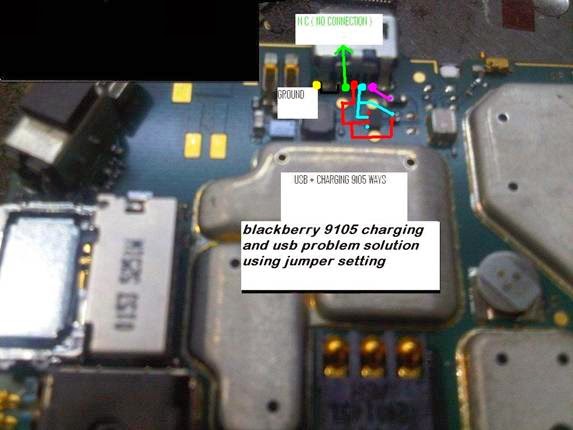
3. If the problem still remains then check all track continuity from the charging pin point to the appropriate transistor and on the IC point as shown in the image below.


4. According to the image first check the point 1 shown in green. The point should be ground.

5. Point 2 in the green mark should be blank with no connectivity.

6. Point 3 with the red point should be connected to charging IC leg number 2 using the red jumper line.

7. Point 4 with the sky blue mark should be connected to IC leg number 1 with the jumper and this point should be connected to the other charging transistor also shown in the image.

8. Last and final point 5 shown with the pink mark should connect to the other charging transistor below the charging pin.

After all of this is done, the jumper setting, mobile charging and making the usb connection the problem will definitely be solved.
  
Conclusion:
During the jumping process we should especially take care of all the nearest components of the circuit board and make sure that they do not become damaged. This is essential because any type of shorting in any component may cause another serious problem. The whole system relies upon the circuit board and if it goes down, then nothing is going to work.

The circuit board is a delicate thing; basically it is the heart of the mobile and any disruption whatsoever can throw it off. Also it is easy to break and difficult to repair. That is why you must be extremely careful when doing anything to it or near it. If something happens to the circuit board, you will have to purchase another mobile.

BlackBerry bold 9000 volume key problem

Fault description:
Blackberry bold 9000 sometime had a strange problem that both side volume key don’t work. So due to this we can’t increase or decrease sound in music and during call. This problem occurs due to problem in side switch or sometime in keypad resistance.

Fault solution:
For quick and proper solution for this error we have to follow all these steps carefully:
1.       First we should change both side volume key and check for solution
2.       After that check that weather appropriate voltage are appearing on volume key point. If voltage missing there then go to step 3
3.       Now we have to check line continuity from volume key point to some resistance point as shown in image below:


4.       First we should test that first point of volume key should be grounded as shown with black mark
5.       Then check second point continuity to key resistance as shown with sky blue mark in above image
6.       Check third point line continuity to a metal type point as shown with green mark
7.       Finally check last and fourth point line track to other resistance as shown in image with red line.

So if during any of these line track testing we found line missing then apply jumper there carefully our problem will solved.
  
Conclusion:
During these jumpers setting we should care that all jumper should be placed separately and they should not have any connection or touching otherwise we will get internally shorting in circuit board.

BlackBerry 9300 display problem

Fault description:
Blackberry 9300 sometime had a strange problem that we can’t see display light on LCD. This problem occurs due to problem in LCD or sometime in LCD IC and track missing from display transistor to LCD connector. 

Fault solution:
For this problem we have to use hardware methods for quick solution. So apply these steps one by one:
1.       First change new lcd an then check light
2.       If no solution then we have to use hardware technique as step 3
3.       Open mobile PCB and check line continuity from LCD connector second point to display transistor IC as shown with yellow line in image below. If line missing there then apply jumper shown below:


4.       After this check line from first point of LCD connector to resistance as shown in image with red line and if line missing there then apply jumper as shown in image in red line. 

After applying both jumpers we will see proper display light on LCD without any problem.
  
Conclusion:
During new LCD change process we should use new and original LCD because local LCD can cause bad result in light.

Monday, August 13, 2012

Issue with BlackBerry 8320 charging

Fault description:
In blackberry 8320 mobile charging problem occurs due to charge track missing from charger pin
To appropriate component. So we can’t charge mobile or we get charger trouble that battery shows charge indication but doesn’t store charge so it discharges immediately.

Fault solution:
For the solution to this problem, first we have to clean the charging connector from any dust or carbon. This might seem like an unnecessary chore, but it is important as even the slightest bit of debris can cause the the charger to stop working. This is a delicate component you are dealing with and it doesn't take much to interfere with its ability to operate. After this we have to check the charge condition and then apply the following tips for a complete solution:
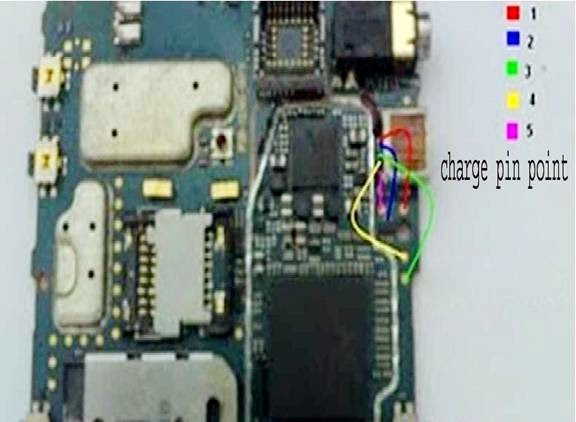
1. Here we have a five pin charging connector in the BlackBerry mobile 8320, so first check all track continuity from those points to all resistance and ground points as shown in the image:


2. Check that the first pin point is connected to ground earth as shown in the red line.

3. Check that the second point is connected to the upper point of the charging transistor as shown in the blue line.

4. Check that the third point is connected to the vcc point on the PCB as shown in the green line.

5. Check that the fourth point is connected to the VBat point on the PCB as shown in the yellow track.

6. Finally check that the last point is connected to the positive on the PCB as shown in the pink line.

7. After checking all the points, if the voltage is missing on any point track, then apply the jumper as shown in the above image.

Conclusion:
While checking all the lines we should properly check all charging points carefully because wrong or bad soldering may damage the charge circuit. Soldering is more than just melting two points together. It has to be done a certain way so as not to interfere with the operation of the charger or even cause some serious harm to the charge circuit.  

Thursday, August 9, 2012

BlackBerry 8310 ringer not heard

Fault description:

In the BlackBerry 8310 sometimes the ringer (buzzer) starts not responding, so we can't hear the music and ringtone sound. This problem mainly occurs due to a damaged ringer, but sometimes it is due to an internal line missing on the ringer track.

Fault solution:

For a quick solution of the BlackBerry 8310 buzzer problem we have to apply the following tips:1. First check that on the profile normal or loud has been activated because sometimes we activate the silent profile so no sound will come from the ringer.

2. After this try to replace the ringer with a new one and check the sound from the ringer.

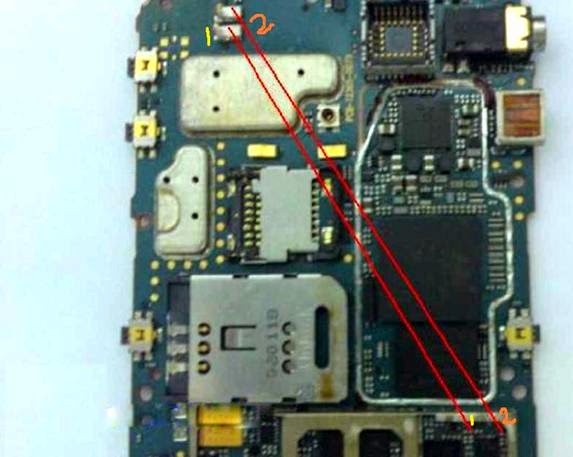
3. If that is not the solution then check the line continuity on the ringer connector point on PCB.

4. If no current appears there on both points, then apply the following jumper from the ringer connector point to both resistances as shown in the red line 1 & 2 shown in the image below:


5. If you still have no luck then we have to rebel or change the main CPU IC because the sound IC is built into the CPU.

Conclusion:

Before applying the jumper we should first check if the track continuity is correct on the ringer point.

The solutions to this problem may seem like they are confusing, but in fact they aren't difficult at all. It's possible that the problem can be corrected the first time out without having to resort to any further measures.

Just be careful when using the jumper as always, to make sure that the connectors are clean and the wire is strong. That a swift and trouble free connection can be made without having to take much time about it at all. It may just work and save you any further problems.

Blackberry 9700 no camera flash

Fault Description:
The Blackberry 9700 mobile has a good camera flash but sometimes the camera flash doesn't work, so we have trouble during night photography or sometimes in low light conditions.
Fault description:
So to solve this problem follow all these steps:
A. First open the camera and check the camera setting and check in the camera setting that the camera flash is set to the on or automatic option.

B. Now check the camera flash. If that is not the solution then try the hardware solution.

C. First check whether the camera flash is properly connected to the PCB.

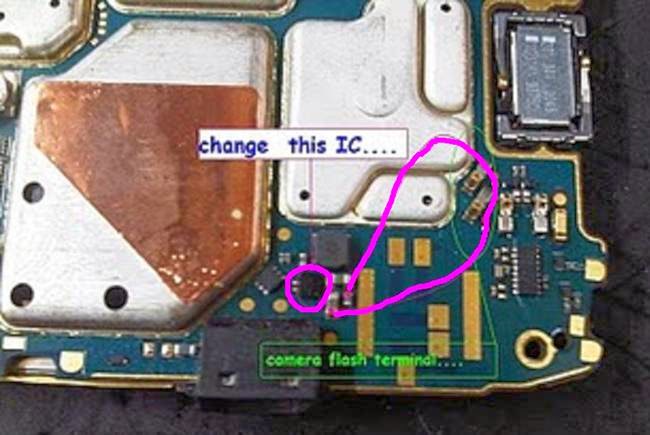
D. Now check the track line between two resistances and use the jumper setting from the resistance shown with the pink line as shown in the image below:


E. Now check the camera flash. If this is not the solution then change the camera flash IC shown within pink mark and then the camera flash will work properly.

Conclusion:
During the jumping process special care should be taken because the resistances are very close and an improper setting may damage other things. These machines may seem like they are sturdy, and in many ways they are. However, there are some areas inside that require a little extra care or a little extra caution when you are working too closely to those areas. It doesn't take much to cause a problem and it's foolish to risk doing so when a little extra care can prevent these troubles.

And always remember to treat the jumpers with respect and keep the connectors clean. When you are dealing with jumpers the connection they need to make can very easily be disrupted or prevented from occurring at all. It's that delicate. So it's essential that you make sure they are absolutely clean.

Wednesday, August 8, 2012

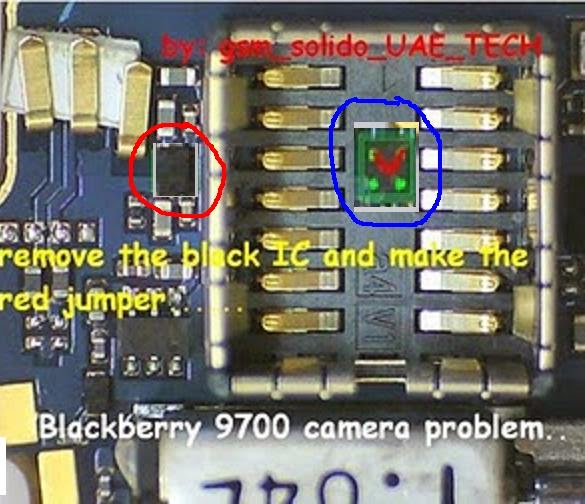
Blackberry storm 9700 start camera error

Fault description :
The BlackBerry storm 9700 mobile has a camera fault due to a hardware problem. But in some cases it cam be caused by some software error. When we start the camera then it shows the words camera error or the mobile just restart.


Fault solution:

For repairing camera we have to first check software because some time due to setting mismatch camera start to shows error so apply these tricks:
A.      First open camera and select setting then press restore camera setting then mobile will shows restore all camera setting to its default then press yes . Now check camera if no solution then go to step b.
B.      Open mobile and first clean camera connector then check 
C.      If still no luck then remove IC shown in red mark
D.     Then apply jumper shown in blue mark to that IC point as shown in image below:


E.      After all done if still camera doesn’t work then change the camera.  

Conclusion:
During the camera problem we first have to check the software setting, because if the problem is in the setting and we apply the jumper then it will produce more problems.

If however, the problem is in the hardware, then it will probably be necessary to get another camera. It is extremely difficult to correct problems that are embedded in the hardware as opposed to software where it is usually possible to make corrections and solve a problem fairly easily.

The situation is not the fault of you the user in any way but exists because of the software or hardware defect, so keep that in mind if you have to have the camera replaced. It is the company's responsibility to do so after you have made every attempt to correct the difficulty yourself.

Sunday, August 5, 2012

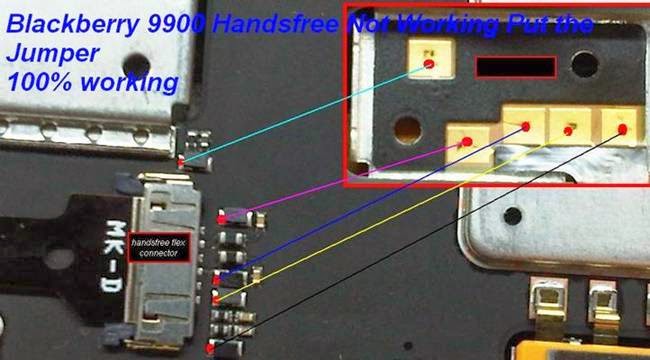
BlackBerry Bold Touch 9900 hands free Doesn't Always Work

Fault description:

The BlackBerry Bold Touch 9900 is the latest mobile phone with the touch and type feature. Sometimes the mobile's hands free starts creating a problem where it stops working sometime so that during a call we can't switch to hands free or loudspeaker mode.

Fault solution:
To quickly repair this problem we have to follow all these steps carefully. Here are the steps:

1. First clean the hands free jack (connector) with acetone and then check hands free.

2. Now check the mobile setting for handset profile. Go to the setting then profile and then select normal profile or handset profile. If the problem is not solved yet, then we should apply the hardware solution.

3. Open the mobile PCB and first change the hands free connector (jack) and check the problem.

4. If the problem is still there then apply the following jumper from 4 resistance near the hands free flex connector.

And one resistance above the flexes connector as shown in the image below:


Conclusion: 
During the hands free jumping process take care about the nearer components that they should not be shorted, otherwise many new problems can appear.

This could really have devastating effects, because it could ultimately lead to the entire mobile having to be replaced. The system is complicated and delicate, so while it's okay to make mistakes, you should exercise caution and take precautions to avoid causing unnecessary difficulties.

You should also check to make certain that the jumper connectors are clean and connected securely to the jumper wire which should be in good shape and not something that is frayed or damaged in any way.

Popular Posts

Advertisement

Compare hotel prices and find the best deal - HotelsCombined.com